
SSD Upgrade Versus a New Computer: Which Wins?
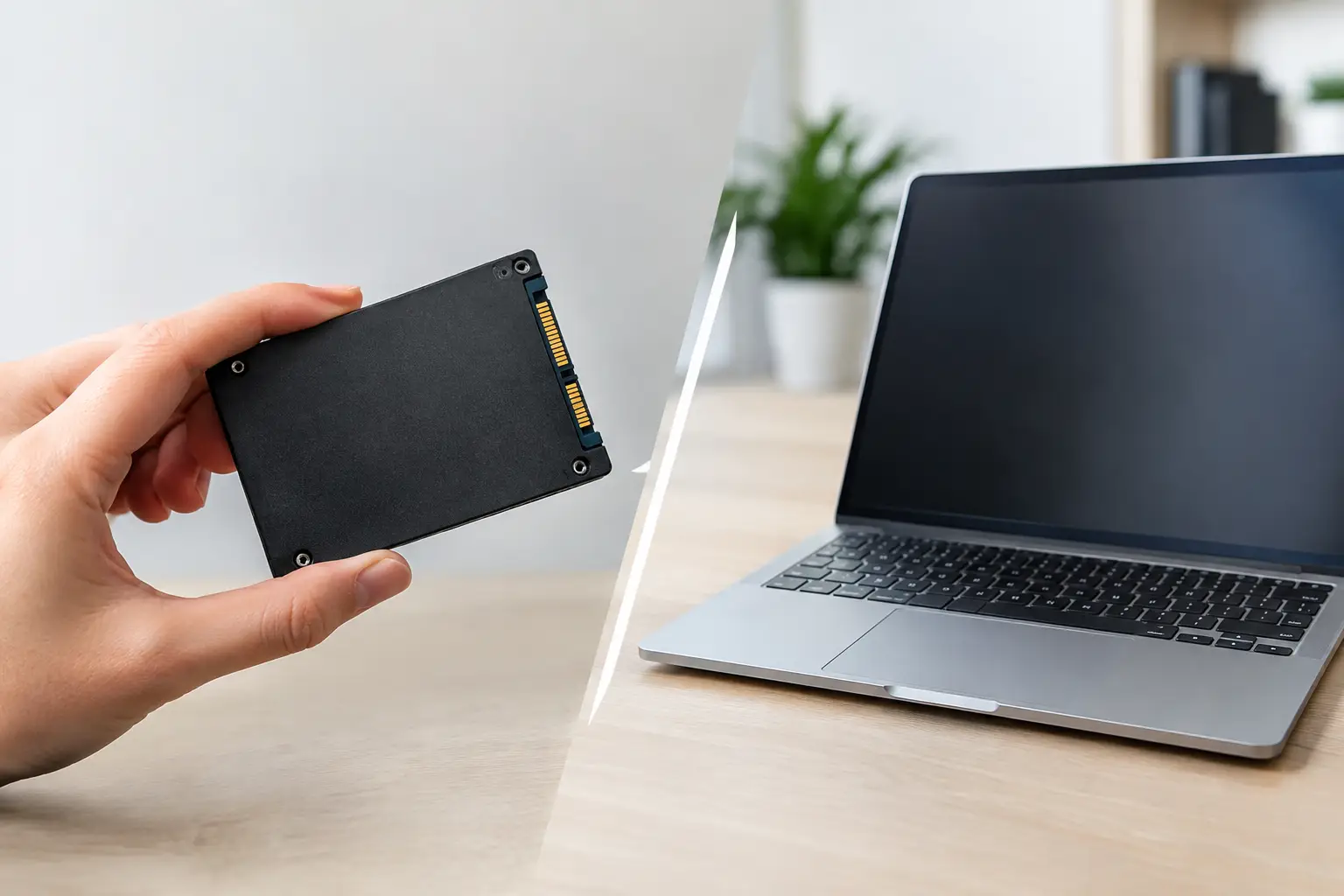
A computer that takes five minutes to reach the desktop can make replacement feel inevitable. Often, the real problem is not the whole machine. When weighing an SSD upgrade versus new computer, the condition of the processor, memory, battery, display, and motherboard matters far more than the calendar age printed on the bottom of the laptop.
For many El Paso customers, a solid-state drive is the most cost-effective way to make an older laptop or desktop feel usable again. But it is not a cure for every issue. A proper decision starts with identifying the bottleneck instead of buying parts based on a slow startup alone.
When an SSD Upgrade Is the Smart Move
Traditional hard drives use spinning disks and moving parts. They are much slower than SSDs, especially when starting Windows, opening applications, searching files, installing updates, or switching between several programs. A hard drive can also begin to fail gradually, causing freezing, clicking sounds, file errors, and extremely slow performance.
Replacing that drive with an SSD can dramatically reduce boot times and make normal work feel much faster. This is especially true for systems that are otherwise in good working order. A student laptop used for documents, research, video calls, and web browsing may get several more productive years from an SSD upgrade. The same is true for an office desktop that handles email, invoicing, point-of-sale software, and basic business applications.
An upgrade is usually worth considering when the computer has a reasonably capable processor, enough RAM for its workload, and no major hardware faults. As a general rule, a computer with 8GB of RAM or more and a processor from the last several years can often benefit substantially from faster storage. Even some older machines can become noticeably more responsive if their main limitation is a failing or slow hard drive.
There are two common SSD types. A 2.5-inch SATA SSD works with many older laptops and desktops that originally used a standard hard drive. An M.2 NVMe SSD is smaller and substantially faster, but it requires a compatible M.2 slot and proper system support. Buying the wrong drive is an easy way to waste money, so compatibility should be checked before any upgrade begins.
The upgrade process is also about more than installing a new drive. Your operating system, user files, applications, licenses, and settings need to be moved correctly or reinstalled. If the original drive is failing, cloning it may not be reliable. In that situation, backing up recoverable data and performing a clean operating system installation is often the safer path.
SSD Upgrade Versus New Computer: Check the Whole System
An SSD can improve how quickly a computer responds, but it cannot overcome every limitation. If a laptop has a weak processor, only 4GB of non-upgradeable memory, a failing battery, cracked screen, broken hinges, or recurring motherboard issues, storage alone may not make financial sense.
Start with the work the computer needs to do. Basic browsing and office tasks have modest requirements. Photo editing, coding, large spreadsheets, video production, 3D design, and newer games require more processor power, memory, graphics capability, and cooling. A faster SSD helps these tasks load files faster, but it does not turn an entry-level system into a workstation or gaming PC.
Operating system support is another key factor. An older computer may run acceptably after an SSD upgrade but may not meet the requirements for current software or security updates. That does not automatically mean it must be replaced, but it should be part of the decision. A business computer that stores customer information or accesses financial accounts needs supported software and dependable security.
Look at repair costs as a package, not one line item at a time. An SSD upgrade is a strong value when it solves the main performance issue. If the system also needs a battery, keyboard, charging port, screen, and memory upgrade, the total can approach the cost of a newer replacement with better long-term support. Honest diagnostics prevent putting good money into a computer with multiple major problems.
A new computer is usually the better choice when the motherboard has intermittent failures, the processor cannot handle required programs, repairs exceed the machine's practical value, or parts are no longer available. It is also worth replacing a system when downtime is costing a small business more than the repair itself. A dependable machine is often cheaper than repeated interruptions during a workday.
Signs Storage Is Probably the Main Problem
Storage may be the primary issue if the computer is slow to boot but runs reasonably once programs are open, if the hard drive stays at high usage during basic tasks, or if you hear clicking from a mechanical drive. Repeated disk warnings, file corruption, and random freezing can also point to a drive that is nearing failure.
Do not wait too long if important files are still accessible. A failing drive can stop working without much warning. Copy essential documents, photos, business files, and project folders to another device or backup location before attempting upgrades. Data recovery becomes more complicated and more expensive after a drive has completely failed.
Signs an SSD Alone Will Not Be Enough
Frequent blue screens, sudden shutdowns, overheating, distorted display output, liquid damage, and charging failures are not storage-speed problems. Neither are damaged USB ports, HDMI issues, Wi-Fi faults, or a computer that does not power on. These symptoms call for diagnostics before deciding on an upgrade or replacement.
Low memory can also look like a drive problem. When RAM is full, Windows uses storage as temporary memory, and the computer slows down sharply. Adding RAM along with an SSD can be a sensible combination if the model allows it. In other systems, memory is soldered to the motherboard and cannot be expanded.
Compare Cost, Time, and Useful Life
The right choice comes down to the cost of the upgrade, the expected remaining life of the computer, and how much performance you actually need. An SSD and operating system installation can be far less expensive than replacing a computer, particularly when the screen, battery, keyboard, and internal hardware are healthy. It can also reduce downtime because you keep your familiar setup and files.
Replacement has advantages too. A newer computer may bring longer battery life, better webcam quality, Wi-Fi improvements, modern ports, a higher-resolution display, stronger security support, and a warranty. For users moving from basic work to demanding software, those improvements can matter more than saving an older machine.
For gaming desktops, the decision deserves a closer look. SSD upgrades improve game load times and overall system responsiveness, but frame rates depend mostly on the graphics card, processor, and available memory. If games are stuttering because the system does not meet current requirements, an SSD will not solve the core limitation. On the other hand, a desktop with a solid CPU and graphics card may be a good candidate for a larger NVMe SSD rather than a full replacement.
MacBooks require additional care. Some models use proprietary storage designs, while others have soldered storage that cannot be upgraded in the usual way. Before spending money on a replacement computer, have the exact model evaluated to see what repairs or upgrades are realistically available.
Get a Diagnosis Before You Spend
The best decision is based on the actual condition of the machine, not a guess from one slow afternoon. A technician can check drive health, memory usage, operating system errors, temperatures, battery condition, and motherboard stability. That evaluation can reveal whether the computer needs a straightforward SSD upgrade, a broader repair, or replacement.
At EPElectrocenter, all services are performed in-store, and walk-ins are welcome for a free initial evaluation. Bring the computer and, if possible, the charger. Explain what changed, when the slowdown began, and whether important files need to be protected. Those details help identify whether the issue is storage, software, power, memory, or something deeper.
A slow computer does not always belong in the recycling bin. If the hardware is healthy and the workload is reasonable, an SSD can be the practical repair that buys back speed, time, and a few more reliable years.