
Laptop Data Backup That Actually Works for You
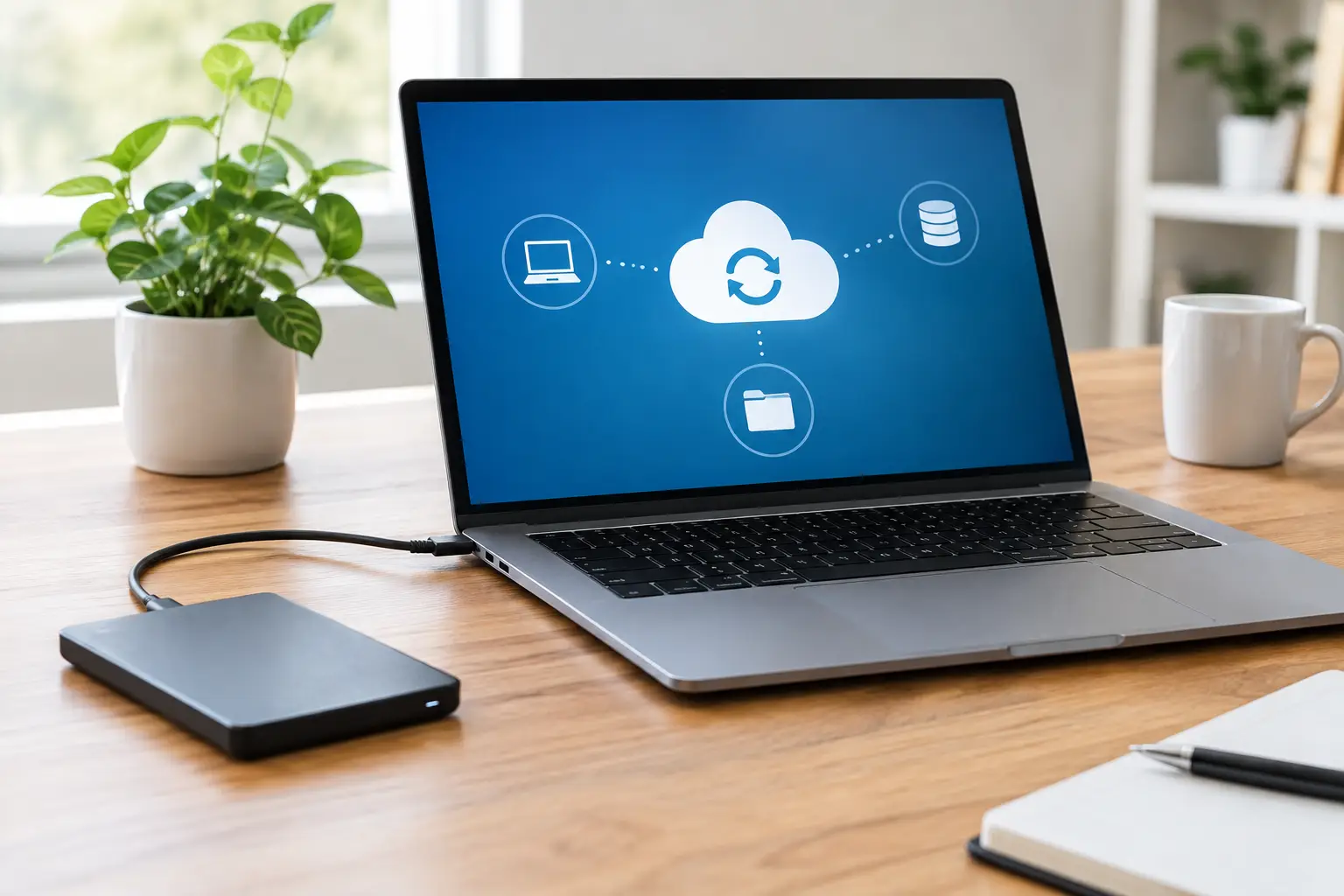
Your laptop can look perfectly normal right up until it will not start, a drink reaches the keyboard, or an update goes wrong. A reliable laptop data backup is what separates a frustrating repair from a permanent loss of photos, school files, business records, and years of work.
The goal is not to make one copy and hope for the best. The goal is to keep your important data available even if the laptop is stolen, the internal drive fails, or the device needs major hardware repair. For most people, that means using more than one backup location and checking it occasionally.
What Should Be Included in a Laptop Data Backup?
Start with the files that would hurt to lose. For a student, that may be class notes, essays, research, and project folders. For a small business, it may include customer documents, invoices, bookkeeping files, product photos, and email exports. Personal users should think beyond the obvious: photos, videos, tax documents, saved scans, browser bookmarks, password vault recovery information, and files stored on the Desktop or Downloads folder are commonly missed.
Do not assume everything is already safe because it appears in a cloud app. Some services sync files rather than truly backing them up. If you accidentally delete a synced file, that deletion may spread to every connected device. Version history can help, but it is usually limited by time and storage rules.
A complete plan should also account for the operating system and installed programs if getting back to work quickly matters. Your documents are the priority, but a full system image can save hours when a drive must be replaced or Windows needs to be reinstalled.
Use the 3-2-1 Rule Without Making It Complicated
The 3-2-1 rule is still practical because it addresses the failures that happen in real life. Keep three copies of important data, on two different types of storage, with one copy stored somewhere else.
For example, you may keep the working files on your laptop, an automatic copy on an external drive at home or at the office, and another encrypted copy in a cloud backup service. If the laptop drive dies, the external drive can help. If a fire, theft, or water event affects both the laptop and the drive in the same room, the off-site copy is still there.
You do not need enterprise equipment to do this. A quality external hard drive or solid-state drive paired with a reputable cloud backup option is enough for many households and small businesses. The key is consistency. A backup drive that stays in a drawer for six months is not a backup strategy.
External Drives: Fast and Under Your Control
An external drive is usually the fastest way to copy a large photo library, video project, or full laptop image. It also lets you restore files without waiting on an internet connection. Solid-state drives cost more per gigabyte but are compact and better suited to being carried around. Traditional hard drives generally offer more capacity for the price, but they can be damaged by drops and should be handled carefully.
For Windows laptops, built-in backup tools can save file history or create a system image. Mac users can use Time Machine with a compatible external drive. Set the backup schedule to run automatically, then leave the drive connected during the time it is scheduled to run.
There is one major trade-off: an external drive sitting next to the laptop is vulnerable to the same theft, flood, or electrical event. That is why it should not be your only copy.
Cloud Backup: Protection Away From the Laptop
Cloud storage is convenient for documents you need on several devices. Cloud backup services are better suited to protecting a larger portion of the computer automatically, including folders you may forget to copy manually. The right option depends on how much data you have, your upload speed, and whether you need shared access for a business.
Before relying on a cloud service, check its retention policy. Find out how long deleted files are available, whether it keeps multiple versions, and what happens if your account has a billing problem. Use a unique password and two-factor authentication. A cloud backup is only useful if you can access it when you need it.
Set Up a Laptop Data Backup Schedule You Will Follow
The best schedule depends on how often your files change. A freelance designer editing client files every day needs automatic daily protection. Someone who uses a laptop mostly for web browsing may be fine with weekly backups, provided important documents are also saved to a cloud account.
For most users, automatic daily backups for documents and photos are a sensible baseline. Run a full external-drive backup at least weekly. Small businesses handling active customer files should consider continuous cloud backup plus a separate local backup drive.
Keep the process simple. Choose one backup location for your primary automatic copy, then add one independent copy. Trying to manage five different services manually usually leads to missed backups and confusion about which version is current.
Test Your Backups Before an Emergency
A backup is not proven because the software says it completed. Open the backup drive or cloud account and restore a few files to a different folder. Check that the files open correctly. Test a document, several photos, and one file from a folder you rarely use.
This matters because damaged backup drives, incomplete sync settings, encryption-key mistakes, and corrupted archives can stay hidden for months. Testing once every few months takes only a few minutes and can expose a problem before the original data is at risk.
For business records, assign one person to verify backups and document the result. That small responsibility prevents the common situation where everyone assumes someone else has it handled.
Common Backup Mistakes That Cost People Their Files
The first mistake is keeping the only backup on the same laptop. If the laptop is lost or the drive fails, so does the copy. The second is copying files manually once, then never updating that copy. A backup needs a schedule because files change.
Another mistake is backing up only documents while leaving photos, Downloads, email archives, accounting databases, and app-specific folders behind. Some programs store critical information outside the standard Documents folder. Ask where the program keeps its database or export files, especially for accounting, design, medical, or point-of-sale software.
Finally, do not wait for warning signs to get organized. Clicking drives, repeated freezing, boot errors, blue screens, and files that disappear or refuse to open can point to storage trouble. Continued use can make recovery harder, especially when a failing drive is repeatedly powered on.
If Your Laptop Is Already Failing
Stop saving new files to a laptop that is showing signs of drive failure. Do not keep restarting it to see whether it will eventually load. Avoid installing recovery software on the affected drive, since writing new data can overwrite files that may still be recoverable.
If the laptop still starts, copy the most important files first to an external drive or cloud location. Start with current work, financial documents, and irreplaceable photos. If the device will not boot, has liquid damage, or the drive is not detected, professional evaluation is the safer move.
At EPElectrocenter, all diagnostic and repair work is performed in-store, including advanced laptop issues that may require drive replacement, operating system work, or data recovery assessment. A free initial evaluation can help determine whether your files are accessible and what the safest next step is.
A laptop is replaceable. The files that document your work, family, and business often are not. Set up the first automatic backup now, then verify it while the laptop is still working normally.