
SSD Versus HDD: Which Drive Fits Your Computer?
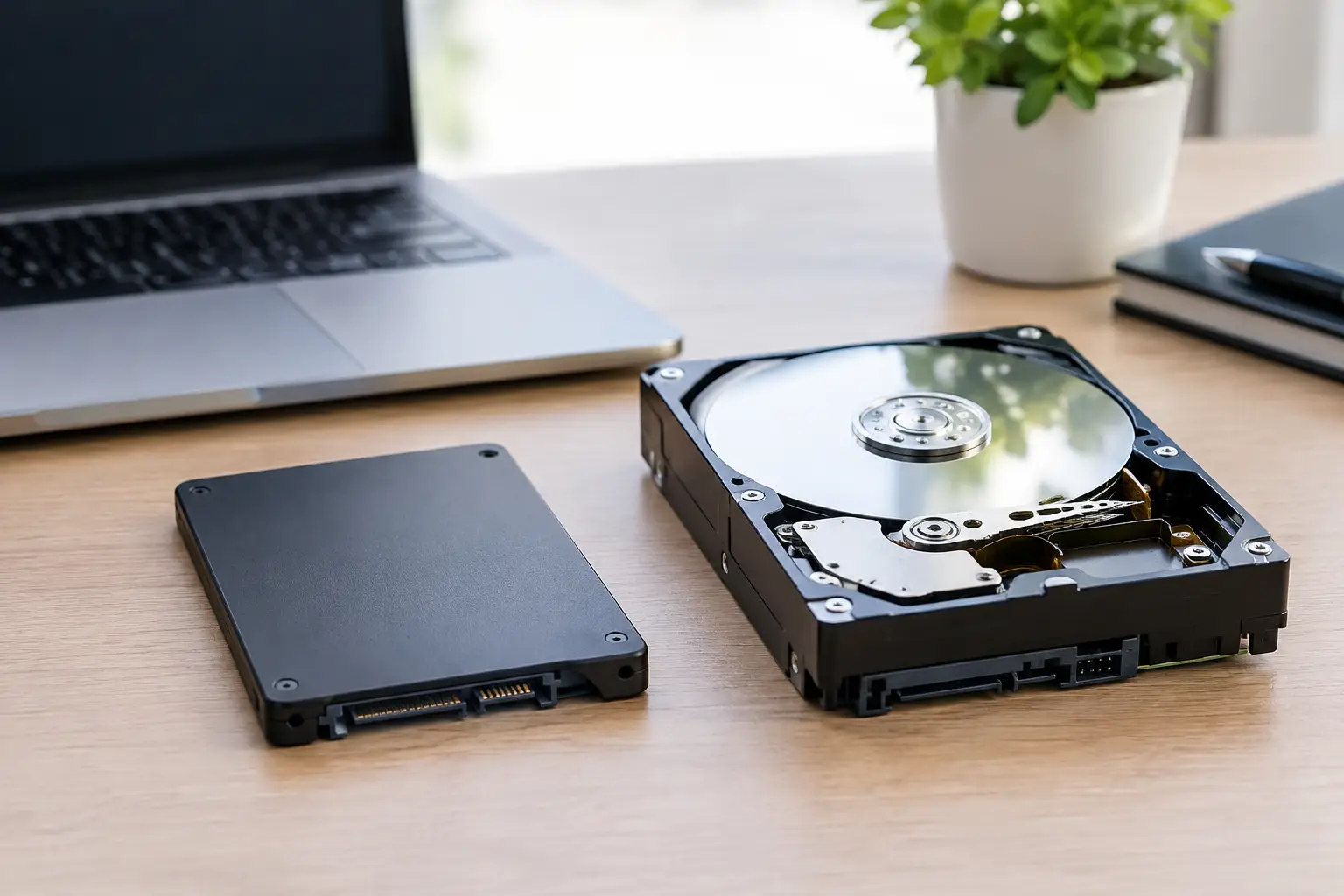
A computer that takes several minutes to start, freezes while opening files, or struggles to load games often has one common bottleneck: its storage drive. The SSD versus HDD decision affects much more than how many files you can save. It changes startup speed, battery life, noise, repair options, upgrade cost, and what happens if the drive fails.
For most laptops and everyday desktop computers, an SSD is the practical choice. HDDs still make sense in specific situations, especially when you need a large amount of low-cost storage. The right answer depends on how you use the computer and whether you are upgrading a working machine, diagnosing a problem, or trying to recover important data.
SSD Versus HDD: The Core Difference
An HDD, or hard disk drive, stores data on spinning magnetic platters. A small read/write head moves across those platters to access files. It is a mechanical device, which is why you may hear an HDD spin up, click, or make a light whirring sound during use.
An SSD, or solid-state drive, stores data on flash memory chips. There are no moving parts. Instead of waiting for a mechanical head to find information on a disk, the computer can access data electronically and much faster.
That design difference is why an SSD can make an older laptop feel dramatically more responsive. Windows starts faster, programs open sooner, updates finish with less waiting, and file searches are quicker. An HDD can still operate normally, but it cannot match the access speed of a quality SSD.
Why SSDs Feel Faster in Real Use
Storage speed is most noticeable in the moments that interrupt your day. On a laptop with a traditional hard drive, you might press the power button and wait for the desktop, then wait again for your browser, email, or work application to become usable. With an SSD, those delays are usually much shorter.
The same applies to gaming PCs and consoles that support storage upgrades. An SSD can reduce game load times and improve how quickly levels, maps, and large game assets load. It will not automatically increase frame rates if the graphics card or processor is the limiting factor, but it can make the system feel less sluggish between gameplay.
For business use, an SSD is especially helpful on computers that open large spreadsheets, point-of-sale software, customer records, design files, or multiple browser tabs throughout the day. Small delays add up when a computer is used for work eight hours at a time.
There are different SSD types, and speed varies between them. A 2.5-inch SATA SSD is a major upgrade from an HDD and works in many older laptops and desktops. An M.2 NVMe SSD is generally faster, but it requires a compatible motherboard or laptop slot. Installing the fastest drive available is not useful if the device does not support it, so compatibility should be checked before purchasing parts.
Where HDDs Still Make Sense
HDDs have not disappeared because they remain cost-effective for high-capacity storage. If you need several terabytes for archived photos, security camera footage, media libraries, backups, or less frequently used files, an HDD can provide more storage for the money.
A desktop can also use both drive types. This setup gives you an SSD for the operating system, programs, and active projects, plus an HDD for large files and backups. It is often a good balance for customers who need speed but do not want to pay SSD pricing for every terabyte of storage.
An HDD may also be reasonable when upgrading an older system on a very limited budget, although the difference in cost has narrowed over time. In most cases, choosing a smaller SSD for the operating system delivers more noticeable improvement than installing a larger HDD alone.
The trade-off is durability. Because HDDs contain moving parts, they are more vulnerable to shock, drops, and wear. A laptop that is bumped while the hard drive is running can suffer damage that an SSD would be more likely to survive. That matters for students, mobile workers, and anyone who carries a laptop every day.
Capacity, Price, and the Upgrade Decision
The best drive is not always the biggest or fastest model on the shelf. Start by checking how much storage your computer actually uses. A customer with 80 GB of files does not need a 4 TB drive. On the other hand, a gamer with a large library or a business with years of project files can quickly fill a small drive.
For many users, 500 GB provides a comfortable starting point for a primary SSD. A 1 TB SSD is often a better fit for gaming, creative work, or a computer expected to stay in service for several more years. Larger capacities are useful, but they should match a real storage need.
Before replacing a drive, check the physical and technical requirements. Older laptops may need a 2.5-inch SATA drive. Newer systems may use an M.2 SATA or M.2 NVMe drive, which can look similar but are not always interchangeable. Desktop computers also need available ports, slots, mounting space, and proper power connections.
A drive upgrade is also an opportunity to address other performance issues. If a computer still has only 4 GB of RAM, is overheating, has a failing battery, or has operating system corruption, installing an SSD may help but will not solve every problem. Honest diagnostics matter because no storage upgrade can repair a failing motherboard, damaged charging circuit, or unstable power supply.
SSD Versus HDD for Data Safety and Recovery
Neither drive type is a substitute for a backup. SSDs are more resistant to physical shock, but they can fail without warning due to controller problems, firmware issues, electrical damage, or worn flash memory. HDDs can develop bad sectors, motor failure, damaged heads, or clicking noises before they stop working completely.
When an HDD starts clicking, repeatedly disconnecting, showing missing files, or taking an unusually long time to open folders, stop using it if the data matters. Continued use can make recovery harder. The same rule applies to an SSD that disappears from the computer, reports errors, or suddenly becomes read-only.
Data recovery from an SSD versus an HDD is not identical. With a failed HDD, the issue may be mechanical or related to damaged sectors. With an SSD, failures can involve the controller, power rails, memory chips, or encrypted data management. Some SSD failures require advanced board-level diagnostics rather than a basic USB adapter or software scan.
Avoid repeatedly restarting a failing drive, installing recovery software onto the same drive, or formatting it because Windows asks to. Those actions can overwrite recoverable data or add unnecessary stress to damaged hardware. If the files are valuable, power the device down and have the drive evaluated before trying random fixes.
When a Drive Replacement Is the Right Repair
A storage replacement is a strong option when the computer is otherwise in good condition but is slow, low on space, or showing signs of drive failure. It can extend the useful life of many laptops and desktops without the cost of replacing the entire machine.
The process should include more than swapping hardware. A proper upgrade may involve checking drive health, confirming compatibility, transferring or reinstalling the operating system, testing startup performance, and verifying that important files are accessible. If the original drive has failed, the priority may shift from cloning data to recovery and a clean operating system installation.
For local customers who are unsure what their computer supports, EPElectrocenter can inspect the device with a free initial evaluation. All services are performed in-store, and walk-ins are welcome for laptops, desktops, gaming systems, and data-related storage problems.
Choose an SSD when speed, portability, quiet operation, and daily responsiveness matter most. Choose an HDD when you need inexpensive bulk storage, preferably as a secondary drive or backup destination. If your current computer is slow or your files are at risk, bring it in before a minor drive issue becomes a complete failure.