
What Causes Laptop Blue Screens? Common Fixes
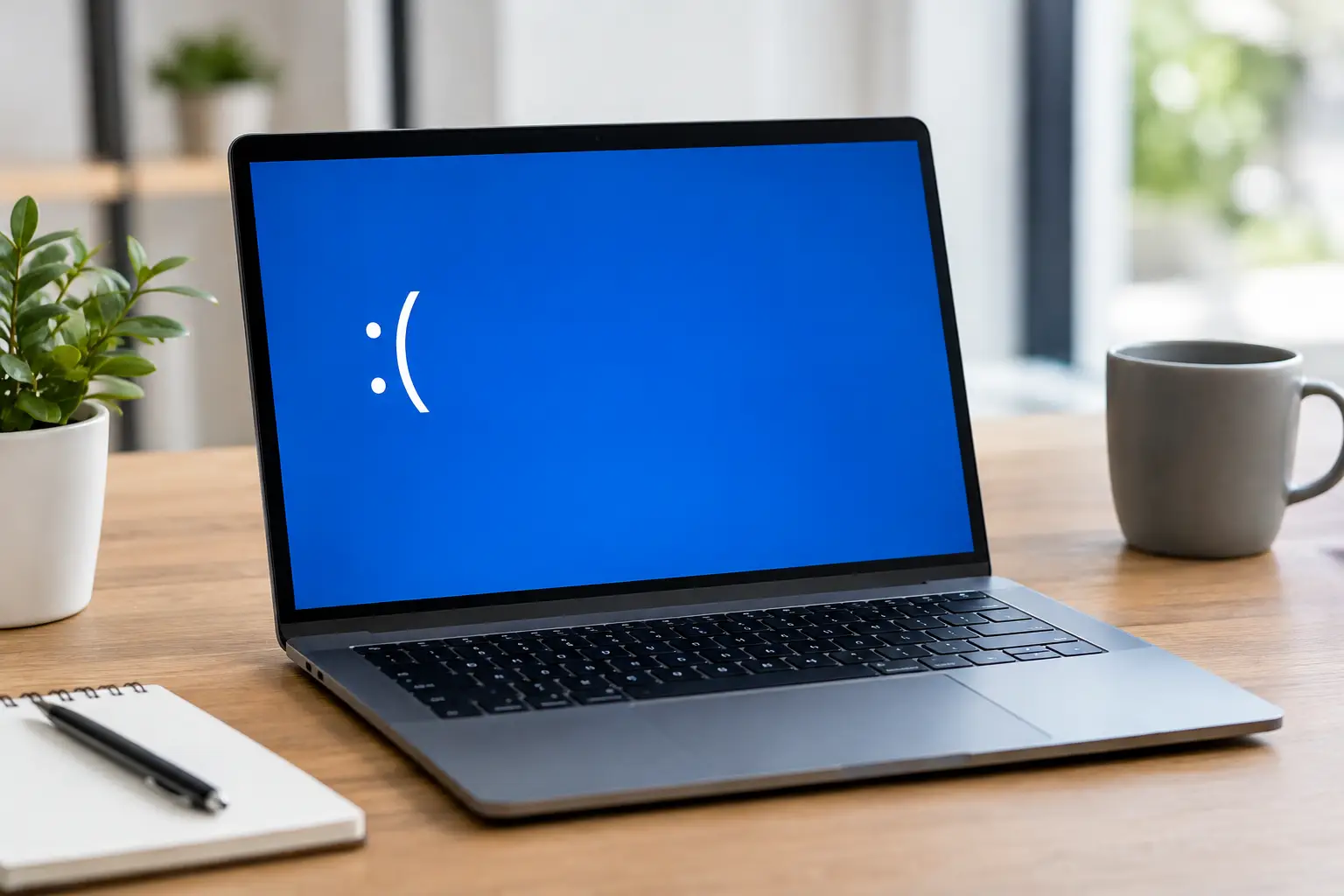
A laptop blue screen can show up at the worst possible moment: while you are finishing an assignment, processing payroll, gaming, or trying to recover an unsaved document. The immediate question is usually, what causes laptop blue screens? In plain terms, Windows has detected a serious error it cannot safely work around, so it stops the system to prevent further damage or corrupted data.
A blue screen is not a diagnosis by itself. It is a warning with many possible causes, from a bad driver after a Windows update to failing storage, overheating, damaged memory, or a motherboard power problem. The pattern matters. A laptop that crashes only when playing games needs a different investigation than one that blue-screens before Windows fully loads.
What causes laptop blue screens in Windows?
Windows blue screens are also called stop errors or BSODs, short for Blue Screen of Death. Modern versions of Windows may restart quickly, which can make the screen hard to read. If you can, take a photo of the stop code and any file name displayed. Codes such as `CRITICAL_PROCESS_DIED`, `MEMORY_MANAGEMENT`, `DPC_WATCHDOG_VIOLATION`, or `INACCESSIBLE_BOOT_DEVICE` give a technician a starting point, but they do not automatically prove one failed part.
The most common causes fall into two groups: software conflicts and hardware faults. Software issues are often less expensive to correct, but repeated crashes can also be the first sign of a physical problem that will get worse with time.
Bad, outdated, or conflicting drivers
Drivers allow Windows to communicate with hardware such as the graphics card, Wi-Fi adapter, touchpad, storage controller, and USB devices. A driver can become unstable after a Windows update, a manufacturer update, or an attempted upgrade that did not install correctly.
Graphics drivers are frequent suspects when a laptop blue-screens during video editing, gaming, external monitor use, or other visually demanding work. Network, audio, Bluetooth, and storage drivers can cause trouble too. Installing random driver-update utilities is not a good fix. They can install incorrect versions or add unnecessary software. Use the laptop manufacturer’s support files or a qualified repair technician who can identify the exact hardware first.
Windows update or system file corruption
An interrupted update, sudden battery drain, forced shutdown, malware infection, or failing drive can damage Windows system files. The laptop may crash during startup, loop through automatic repair, or blue-screen after logging in.
Sometimes rolling back a recent update or starting in Safe Mode resolves the issue. Other times, Windows needs repair work or a clean installation. Before reinstalling Windows, make sure important files are backed up. A reinstall may restore normal operation, but it will not fix a failing SSD, bad RAM, or board-level fault behind the corruption.
Failing SSD, hard drive, or storage connection
A laptop depends on its internal drive every second it is running. When an SSD or hard drive starts failing, Windows may lose access to essential files and crash. Symptoms can include slow boot times, freezing before a blue screen, files that will not open, repeated repair screens, or errors that mention boot devices.
A loose or damaged storage connection can create similar symptoms, especially after a drop or previous repair. With older hard drives, clicking or grinding sounds are a serious warning. Stop using the laptop if you hear those noises and prioritize data recovery. Continued use can reduce the chance of recovering important files.
Faulty or unstable RAM
Memory problems can create blue screens that seem random. The laptop may crash while browsing the web, sitting idle, opening several programs, or waking from sleep. Errors mentioning memory management may point in this direction, but professional testing is still needed before replacing parts.
RAM can fail with age, heat, physical impact, or liquid exposure. A laptop that was recently upgraded can also become unstable if the new memory is incompatible, improperly installed, or defective. Some models have soldered memory, which changes the repair options and makes accurate diagnosis even more important.
Overheating and cooling problems
Laptops run hot by design, but they should not constantly overheat. Dust buildup, a failing fan, dried thermal paste, blocked air vents, or heavy workloads can push temperatures too high. The laptop may become loud, slow down, shut off, or blue-screen during games, video calls, rendering, and other demanding tasks.
Heat can expose another underlying issue as well. For example, an aging graphics chip or weak power circuit may fail only once the laptop reaches a certain temperature. Putting the laptop on a bed, couch, or blanket can block ventilation and make the problem worse. Use a hard, flat surface while testing and check whether the fan runs normally.
Malware, unstable software, and connected devices
Malware can damage system files, interfere with drivers, and create unpredictable crashes. So can poorly written software, aggressive antivirus tools, overclocking utilities, and older programs that no longer work well with the current version of Windows.
External devices are worth considering too. A faulty USB hub, damaged flash drive, external hard drive, docking station, or charger can trigger a crash through a bad driver or electrical issue. If blue screens started after connecting a specific device, disconnect it and test the laptop again. Do not continue using a charger that is frayed, overheating, sparking, or intermittently charging.
Motherboard, power, and liquid damage faults
Some blue screens are caused by faults that Windows troubleshooting cannot repair. A power rail problem, charging circuit issue, damaged USB port, shorted component, failed graphics circuitry, or corrosion from liquid exposure can make a laptop unstable even when Windows appears to be the problem.
Liquid damage deserves special attention. A laptop may work after a spill, then begin crashing days or weeks later as corrosion spreads across the board. Do not rely on rice, heat guns, or repeated power-ups. Power it off, unplug it, and have it inspected. Board-level diagnostics can identify shorts and unstable circuits that basic software scans will never see.
How to narrow down the problem safely
Start by noticing when the blue screen occurs. Does it happen during startup, only on battery power, when the charger is connected, after waking from sleep, or when running one particular program? Those details reduce guesswork.
Before making major changes, save your files if the laptop stays on long enough. If crashes are frequent, back up documents, photos, business files, and browser data first. A blue screen may be a minor driver issue, but it may also be the warning before a drive fails completely.
You can then take a few sensible steps:
- Photograph the stop code and note what the laptop was doing when it crashed.
- Disconnect nonessential USB devices, docks, external drives, and accessories.
- Restart the laptop and install only legitimate Windows and manufacturer updates.
- If the problem began right after a driver or software install, use Safe Mode to remove or roll back that recent change.
- Check for obvious heat issues, such as blocked vents, constant fan noise, or a laptop that is unusually hot to the touch.
Avoid repeatedly forcing the laptop off during startup unless it is completely frozen. Avoid downloading registry cleaners or one-click fix tools as well. These tools often make troubleshooting harder, and some create more system damage than they solve.
When a blue screen needs professional diagnosis
Get the laptop checked when blue screens return after updates or a Windows reinstall, when it cannot boot reliably, when data is inaccessible, or when crashes follow a spill, drop, overheating event, or charging issue. Those signs call for more than a quick software fix.
A proper evaluation checks the health of the storage drive, memory stability, operating system, temperatures, charger behavior, battery condition, ports, and internal power circuits. The goal is to identify the actual failed component instead of replacing parts based on a stop code alone.
For El Paso customers, EPElectrocenter performs laptop diagnostics and repairs in-store, including Windows issues, hardware replacement, data recovery, liquid damage work, and advanced motherboard-level troubleshooting. Walk-ins are welcome, and a free initial evaluation can help determine whether the problem is a practical repair.
Treat a recurring blue screen as a signal to protect your data and investigate early. The sooner the cause is identified, the better the chance of avoiding a no-boot laptop, lost files, and a larger repair than necessary.