
How to Fix Boot Loop Issues Without Losing Data
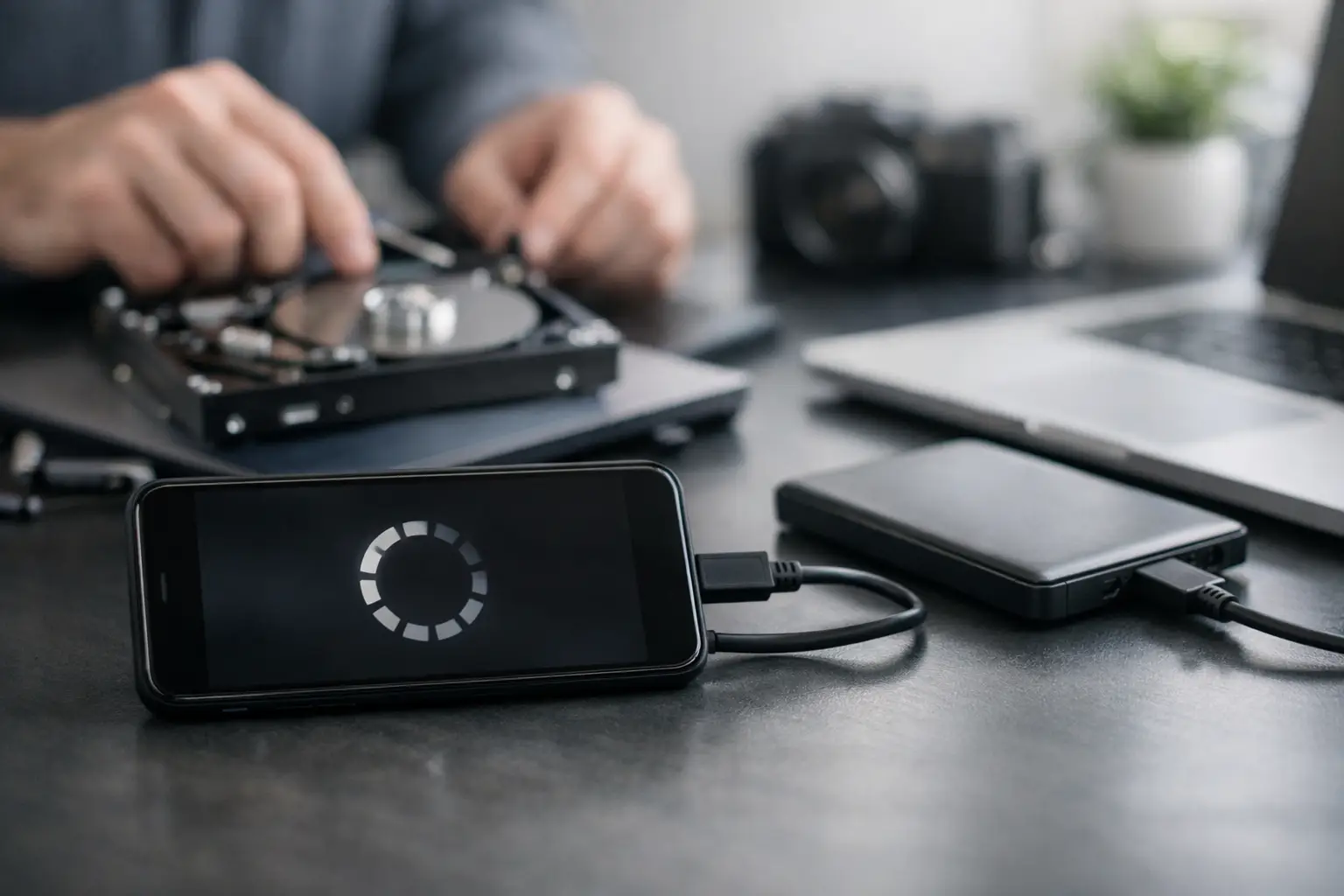
A device that shows its logo, shuts off, and starts over again is not just "being slow." It is stuck in a boot loop, and repeated restart attempts can turn a simple software issue into a battery drain, data-loss risk, or a missed workday. Knowing how to fix boot loop problems starts with identifying whether the cause is software, power, storage, or the motherboard itself.
A boot loop can affect phones, tablets, Windows laptops, MacBooks, desktop PCs, gaming consoles, and handheld systems. The symptoms look similar, but the correct repair can be very different. A phone that started looping after an app update may recover with a forced restart. A console that loops after a power surge may have a failing power rail or storage issue that needs in-store diagnostics.
What a Boot Loop Usually Means
A device needs several things to start correctly: stable power, working storage, a healthy operating system, and functioning hardware. If one of those steps fails, the device may restart before it reaches the home screen, login screen, or dashboard.
Software problems are common. A failed update, corrupted system file, incompatible app, full storage drive, or interrupted restore can all prevent the operating system from loading. These issues are often repairable without replacing parts, although a reset or operating system reinstall may be required.
Hardware problems require more caution. A weak battery can drop voltage during startup. A damaged charging port can create unstable power. Liquid exposure can corrode components or cause a short. On computers and consoles, a failing SSD, hard drive, RAM module, charging circuit, or motherboard component can cause repeated restarts. If the boot loop began after a drop, liquid damage, overheating, or a failed charging event, hardware should be high on the list of suspects.
How to Fix Boot Loop Problems Safely First
Before trying multiple fixes, disconnect unnecessary accessories. Remove USB drives, SD cards, external hard drives, docks, controllers, printers, and charging accessories. A faulty peripheral or corrupted external drive can stop a computer, tablet, or console from completing startup.
Next, use a known-good charging cable and power adapter. Let a phone or tablet charge for at least 30 minutes before attempting another restart. For laptops, test with the correct charger and wall outlet. Do not keep forcing a device to reboot when it becomes hot, emits a burning smell, has a swollen battery, or shows signs of liquid damage. Those are repair-shop issues, not problems to troubleshoot through repeated power cycles.
A forced restart is the safest first move because it does not erase data. The button combination depends on the device, but it generally involves holding the power button longer than normal or holding power with a volume button. For a Windows computer, hold the power button until it turns off, wait a few seconds, then start it again. If it boots normally afterward, back up important files right away. A one-time boot loop can still be an early warning sign.
Check What Happened Right Before the Loop
The timing matters. If the problem began immediately after an operating system update, app installation, game update, restore attempt, or storage warning, software troubleshooting makes sense. If it began after a drop, water exposure, battery replacement, overheating, or a charger failure, skip aggressive reset attempts and get the device evaluated.
Also pay attention to how far the device gets. A phone that reaches the lock screen before restarting may have an app, storage, or operating system issue. A computer that restarts before showing a manufacturer logo may have a power, RAM, motherboard, or BIOS-related issue. A game console that displays an error screen may point to corrupted storage, while one that immediately shuts down can indicate a power fault.
Use Recovery or Safe Mode When Available
Recovery mode and safe mode are built-in diagnostic tools. They can help separate a software conflict from a deeper failure without immediately wiping the device.
On Android phones and tablets, safe mode starts the device with most downloaded apps disabled. If the device stays on in safe mode, remove recently installed apps, clear storage space, and restart normally. If it still loops in safe mode or recovery mode, the operating system or hardware may be at fault.
For iPhones and iPads, recovery mode may allow an update through a computer before a full restore is considered. Choose an update option first when available, since it attempts to reinstall iOS without erasing personal data. If the update fails repeatedly, displays a persistent error, or the device disconnects during the process, stop and have the hardware checked. Charging-port faults, battery issues, damaged flex cables, and board-level problems can interrupt restoration.
Windows computers may automatically enter the recovery environment after several failed starts. Start with Startup Repair, then try Safe Mode if it is available. From there, remove a recent driver or software update, check available storage, and back up files. If the computer loops after entering recovery, cannot see its drive, or reports disk errors, the drive may be failing. Continuing to restart it can make data recovery more difficult.
MacBooks can use macOS Recovery to run Disk Utility, check the internal drive, or reinstall macOS. A drive that will not mount, recurring folder-with-question-mark startup screens, or sudden shutdowns during recovery point beyond a routine software reinstall. Modern MacBooks can also have storage and logic-board faults that require advanced diagnostics.
Treat Factory Resets as a Last Software Step
A factory reset can fix serious corruption, but it erases local data on many devices. It should not be the first answer when photos, messages, school files, business documents, saved games, or client information are still needed.
Before resetting, ask whether the device is recognized by a computer, whether cloud backups are current, and whether files can be copied through recovery or safe mode. On a laptop or desktop, remove the drive only if you are comfortable working with the hardware and understand the risk. On encrypted devices, the recovery key or account credentials may be necessary to access files.
If a reset is the only remaining software option, make sure the device has stable power throughout the process. An interrupted reset can leave the device in worse condition. Afterward, set up the device slowly rather than restoring every app and setting at once. If the loop returns immediately after restoring a backup, a corrupted app, configuration, or file may be coming back with it.
When a Boot Loop Is Probably Hardware
Some warning signs point to a repair issue rather than something an update can fix. These include looping after liquid exposure, a device that only starts while plugged in, a battery percentage that jumps unexpectedly, visible screen flickering before restart, heat near the charging port or motherboard, or a device that loops even inside recovery mode.
On laptops and desktops, clicking drives, repeated blue-screen errors, random shutdowns, failure to detect storage, and restarts during diagnostics deserve attention. Gaming consoles may boot loop because of storage corruption, HDMI-related faults, overheating, damaged USB ports, or power-management problems. The right diagnosis requires testing the system instead of guessing at parts.
This is where board-level service can make a real difference. Replacing a battery or reinstalling an operating system will not repair a shorted capacitor, failed charging IC, damaged power rail, corroded connector, or storage circuit issue. Those faults need proper measurement, inspection, and, in some cases, micro-soldering repair.
Get a Clear Diagnosis Before Replacing the Device
A boot loop does not automatically mean the device is finished. Many cases are recoverable, and the most cost-effective repair depends on the cause, the age of the device, and the value of the data inside it. A free initial evaluation can prevent spending money on the wrong fix.
At EPElectrocenter, all repair work is performed in-store, including advanced diagnostics for phones, computers, tablets, and gaming systems. Walk-ins are welcome for devices that will not stay powered on, will not complete an update, or have started looping after a drop or liquid exposure.
If your device is caught in a boot loop, avoid repeated resets when important data is involved. Power it down if it is overheating, bring the correct charger if possible, and let a technician identify the failure before a recoverable problem becomes a replacement decision.