
Best Fixes for Dead Motherboard Problems
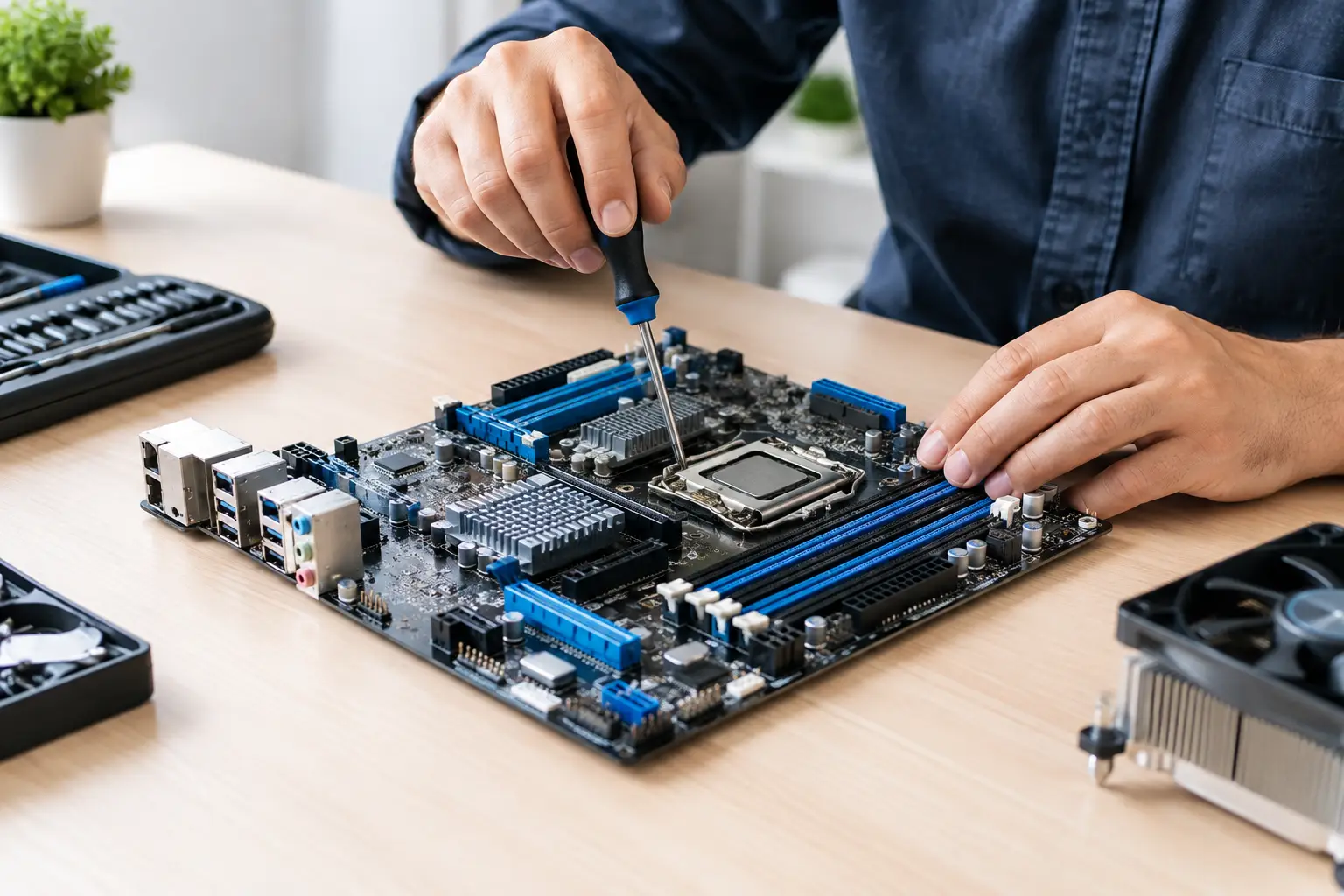
A laptop that shows no charging light, a desktop that will not POST, or a game console that powers on for one second and shuts back off can look like a dead motherboard. Sometimes it is. But the best fixes for dead motherboard problems start with proving the board is actually at fault. A bad charger, failed battery, damaged port, loose RAM stick, shorted USB device, or corrupted firmware can create nearly identical symptoms.
That distinction matters because a motherboard is the central board that distributes power and allows every major component to communicate. Replacing one is often expensive, and on many newer devices it may also contain the storage, encryption keys, or paired components needed to access your data. A proper diagnosis can be the difference between a simple repair and paying for parts you did not need.
Start With the Safest Checks Before Calling It Dead
Before opening a device or assuming the worst, remove outside variables. Unplug all accessories, including flash drives, docking stations, external displays, controllers, and SD cards. A damaged accessory or port can short a power line and keep the device from starting.
For a laptop, test with a known-good charger that has the correct voltage and wattage. Inspect the charging port for looseness, bent center pins, debris, or heat damage. If the charger works on another compatible device but the laptop shows no response, the charging circuit, battery circuit, or motherboard power rail becomes more likely.
For a desktop computer, turn off the power supply and check the outlet, surge protector, power cable, and rear power switch. If you are comfortable working inside a desktop, reseat the RAM and test one stick at a time in the recommended slot. Also check that the CPU power connector and main motherboard power connector are fully seated. A system can appear completely dead when the power supply is faulty or a memory module is not making good contact.
A forced power reset may help on some laptops and tablets. Disconnect power, hold the power button for 20 to 30 seconds, then reconnect the charger and try again. This can clear a stuck power-management state. It will not repair a burned component, but it is a safe step before deeper diagnosis.
What Usually Causes a Motherboard to Fail?
Motherboards rarely fail without a reason. Liquid exposure is a common cause, even when the spill happened weeks earlier. Moisture and residue can corrode tiny components, create intermittent shorts, and damage charging or power-management circuits over time. Turning a liquid-damaged device on repeatedly can make the damage worse.
Power events are another frequent cause. A poor-quality charger, damaged USB-C cable, power surge, or incorrect replacement battery can damage charging ICs, MOSFETs, fuses, or nearby capacitors. On desktops, an aging or low-quality power supply can send unstable voltage to the board and other components.
Heat also takes a toll. Dust-clogged cooling systems, failed fans, dried thermal paste, and long periods of heavy gaming or rendering can stress power circuits. A device that worked only after cooling down, then eventually stopped starting, may have a heat-related board fault rather than a sudden software issue.
Physical damage matters too. A drop can crack solder joints, tear a charging port from the board, or damage layers inside a multilayer motherboard. This is especially common on laptops, tablets, and handheld consoles where ports and power circuits are tightly packed.
Best Fixes for a Dead Motherboard: Match the Repair to the Fault
The right repair depends on what testing finds. Board-level repair is not one single service or one universal fix. It is the process of locating the failed circuit and repairing only the affected part when the board is otherwise recoverable.
Replace the failed power component
Many no-power devices have a localized issue in the power path. A technician may find a blown fuse, shorted capacitor, failed charging IC, damaged power-management chip, or bad MOSFET. These components are small, but they are often replaceable with the right tools, diagrams, measurements, and microsoldering skill.
This is usually a better option than replacing the entire board when the failure is isolated. It can also preserve the original device configuration and, in many cases, the data stored on it. The trade-off is that diagnosis takes real testing. Guessing and replacing random chips wastes time and can cause additional damage.
Repair or replace a damaged charging port
A loose USB-C, Lightning, barrel jack, or console power port can mimic a motherboard failure. If the port is cracked, corroded, or shorted, replacing it may restore charging and startup. On devices where the port is soldered directly to the motherboard, this is board-level work, not a simple plug-in part swap.
Do not keep forcing a charger into a loose port. That can lift pads from the board or short pins that were not originally damaged.
Address liquid damage correctly
If liquid is involved, stop charging and stop attempting to power the device on. Surface drying is not enough. The device needs to be opened, inspected for corrosion, cleaned appropriately, and tested for shorts before power is applied.
Liquid damage repair can range from cleaning corrosion around a connector to replacing multiple components. Results depend on the type of liquid, how long it remained inside, and whether electricity was flowing at the time. Honest repair should include an explanation of the damage found and whether the device is a good candidate for repair.
Reprogram or repair firmware when hardware tests pass
Not every board that fails to boot has a dead electrical circuit. Corrupted BIOS or firmware can prevent a laptop or desktop from posting, particularly after a failed update or interrupted power event. In some cases, the fix is to reprogram the firmware chip, restore a valid BIOS image, or repair the underlying issue that caused the corruption.
Firmware work should come after basic power testing, not before it. A board with a shorted power rail will not be fixed by software, and repeated flashing attempts can complicate an otherwise repairable problem.
Replace the motherboard when repair is not economical
There are cases where replacement makes more sense. Severe corrosion across multiple board layers, a cracked board, extensive fire damage, or an unobtainable processor can make component-level repair impractical. On some older laptops and desktops, a compatible replacement board may cost less than the labor required to trace several failures.
Still, board replacement has limits. It may require transferring or recovering data first, pairing components, reinstalling the operating system, or dealing with activation and security settings. For devices with soldered storage, replacing the board can mean losing access to local files unless data recovery is handled before replacement.
Avoid These Common Mistakes
Do not heat the motherboard with a heat gun, oven, or open flame. Internet “reflow” tricks may temporarily change a connection, but they can warp the board, melt plastic connectors, damage nearby chips, and turn a repairable problem into scrap.
Avoid swapping parts based only on symptoms. A no-power condition does not automatically mean the battery, screen, SSD, motherboard, or power supply is bad. Good diagnostics use voltage readings, resistance-to-ground checks, thermal inspection, and controlled power injection where appropriate.
Also, do not continue charging a device that gets unusually hot, smells burnt, or has a swollen battery. Disconnect power immediately. Battery swelling and electrical shorts are safety issues, not problems to test repeatedly at home.
When Professional Board-Level Diagnosis Is Worth It
Professional diagnosis is especially worthwhile when the device holds important data, is a newer or higher-value model, has liquid damage, or was turned away by a shop that only replaces modules. A qualified technician can determine whether the board is receiving power, identify shorted rails, inspect under a microscope, and explain whether repair is realistic before major work begins.
For El Paso customers, EPElectrocenter performs motherboard-level diagnostics and microsoldering work in-store, including short finding, power rail testing, charging circuit repair, IC replacement, and liquid damage evaluation. Walk-ins are welcome, and a free initial evaluation helps establish whether repair, replacement, or data recovery is the smartest next step.
A device that will not turn on is frustrating, but it is not automatically beyond repair. Protect it from further damage, avoid risky DIY heat fixes, and get a clear diagnosis before writing off the motherboard or replacing the whole device.