
How to Prevent Console Overheating at Home
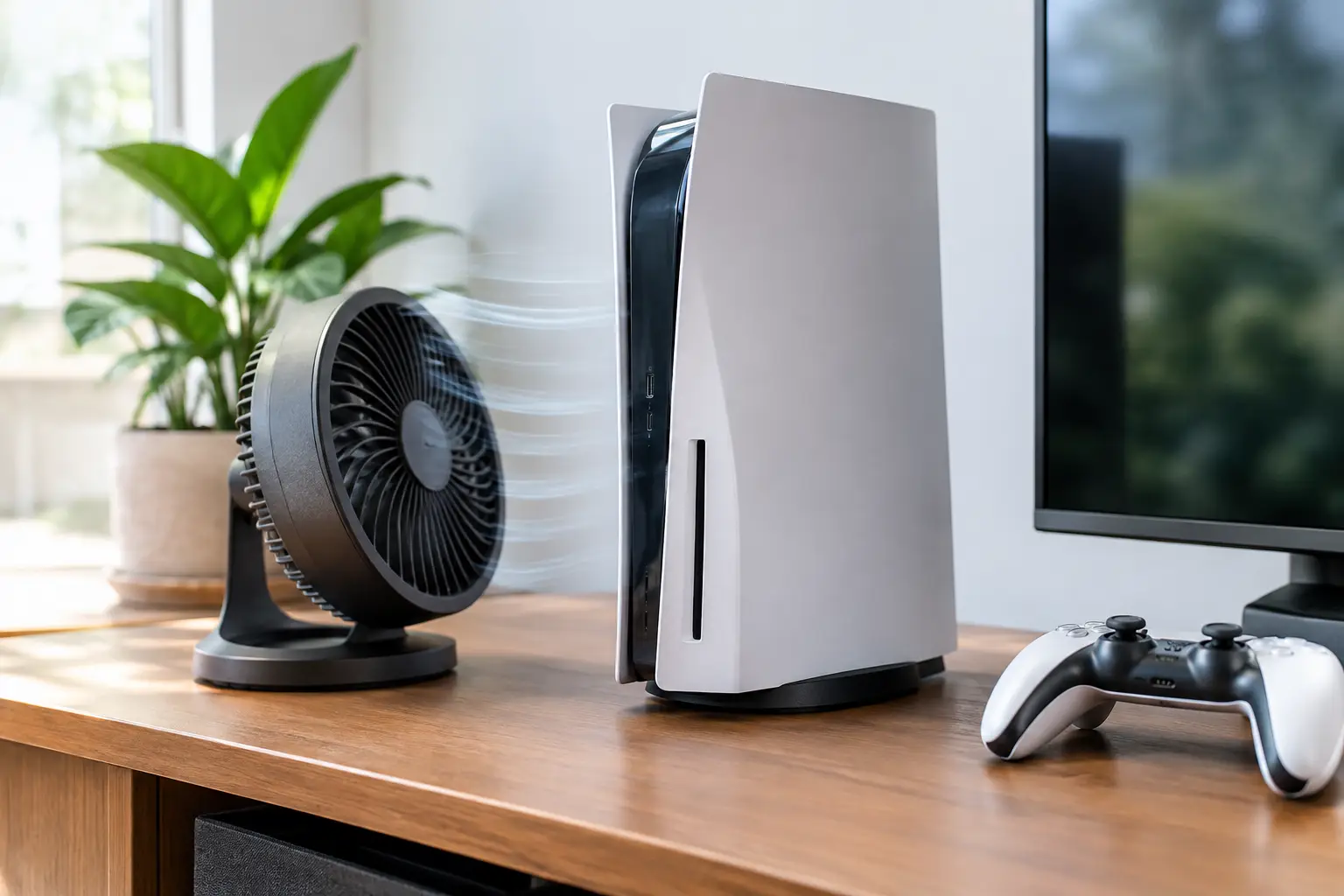
A console that suddenly sounds like a jet, shuts down mid-match, or displays an overheating warning is not just being annoying. Heat can shorten the life of internal components, damage thermal materials, and turn a manageable cleaning job into a more expensive repair. Knowing how to prevent console overheating starts with the way your system is set up, used, and maintained.
Modern PlayStation, Xbox, Nintendo, and gaming PC-style handheld systems are built to run warm. That is normal. What is not normal is repeated overheating warnings, random power-offs, burning smells, extreme fan noise, or a console that becomes too hot to comfortably touch around its exhaust area. Those are signs the system needs attention before the problem gets worse.
Give Your Console Room to Breathe
The most common overheating problem is also the easiest to prevent: poor airflow. A console needs to pull in cooler air and push hot air out. When it is squeezed inside a closed entertainment center, backed against a wall, or covered by objects, that heat has nowhere to go.
Place the console on a hard, stable surface with open space around its vents. Avoid setting it on carpet, blankets, beds, or thick fabric furniture. Soft materials can block intake vents and pull lint and dust directly into the system.
For most consoles, leave several inches of clearance around every vent, especially at the rear and sides. If your console sits in a TV cabinet, leave the cabinet doors open while playing or move the system to an open shelf. A large entertainment center can trap heat surprisingly fast, particularly during long sessions in El Paso's warmer months.
Do not stack devices directly on top of the console. A router, external drive, cable box, or another console can restrict ventilation and add more heat to the same small space. Vertical or horizontal placement is usually fine when it follows the manufacturer's intended orientation, but airflow matters more than appearance.
Keep Dust From Becoming an Insulator
Dust is one of the biggest reasons a previously quiet console becomes loud and hot. It collects on fan blades, intake screens, heatsinks, and exhaust paths. Over time, the dust acts like insulation, making it harder for heat to leave the console.
Check the exterior vents every few weeks, especially if you have pets, smoke indoors, live near dust, or keep the console close to the floor. Use a soft brush or a low-power vacuum near the exterior vent openings to remove loose buildup. Wipe the surrounding shelf or desk as well, since a clean setup reduces how much debris the console pulls in.
Be careful with compressed air. Blasting air into a console can push dust deeper into the system or make the fan spin excessively. If you use it, use short, controlled bursts from a reasonable distance and avoid forcing debris through every opening. Never spray liquid cleaners into vents.
A deeper internal cleaning may be needed if the fan stays unusually loud even after improving the console's location and cleaning the outside. Internal cleaning requires proper disassembly, the right tools, and care around delicate connectors. One stripped screw, torn cable, or misplaced screw can create a new problem. If you are not comfortable opening the console, have it professionally cleaned instead.
How to Prevent Console Overheating During Long Sessions
Long gaming sessions do not automatically cause overheating. A healthy console should be able to handle normal use. But extended play exposes weaknesses in ventilation, dust buildup, fan performance, and thermal cooling materials.
Give the room a reasonable temperature when possible. If the console is running in a closed room without air conditioning during a hot afternoon, it starts with warmer air and has a harder time cooling itself. Do not place it next to a heater, in direct sunlight, or directly beside the warm exhaust of a desktop computer.
If the fan becomes noticeably louder than usual, pause and check the setup. Make sure nothing has shifted against a vent and that the console is not sitting on a heat-trapping surface. A loud fan does not always mean a repair is needed, but a sudden change in fan noise is worth taking seriously.
It can also help to fully power down the console after a long session instead of leaving it running for days. Rest mode is useful, but it is not a substitute for basic maintenance. Software updates, downloads, and background activity can still produce heat depending on the system and settings.
External cooling fans and clip-on accessories are not a guaranteed fix. Some can move air around the console, but they cannot correct a clogged heatsink, a failing internal fan, dried thermal paste, or blocked factory vents. In some cases, poorly designed accessories interfere with airflow rather than helping it. Start with clear ventilation and cleaning before buying add-ons.
Watch for Problems That Need More Than Cleaning
Overheating is sometimes a symptom, not the root cause. A console may be clean and properly placed but still run too hot because of an internal hardware fault.
A failing fan may spin slowly, make grinding or rattling noises, or stop intermittently. Thermal paste or thermal pads can degrade over time, reducing heat transfer between the processor and cooling system. On certain models, liquid metal, heatsink pressure, damaged fan connectors, power issues, or motherboard-level faults can also contribute to excessive heat behavior.
Pay attention if your console repeatedly does any of the following:
- Shuts off during demanding games but works normally at the menu
- Displays a temperature warning after only a short time of use
- Runs extremely loud despite having open airflow and clean vents
- Produces clicking, grinding, or buzzing fan noises
- Has no airflow coming from the exhaust while powered on
- Gets hot in one specific area or has a burning odor
Do not keep restarting a console that is shutting down from heat. Repeated thermal shutdowns can put unnecessary stress on components. Turn it off, unplug it, let it cool completely, and inspect the surrounding setup. If the issue returns after basic steps, it is time for a proper diagnosis.
Avoid Risky DIY Fixes
Online videos can make console repair look simple, but overheating repairs are not all the same. Cleaning an accessible fan cover is very different from replacing thermal materials or diagnosing a power rail problem on the board.
Avoid opening a console with improvised tools, using household lubricants on a fan, applying excessive thermal paste, or modifying vents by cutting the case. These shortcuts can damage the system, create electrical risk, or make future repairs harder. Removing the wrong screws can also damage the board or leave the heatsink improperly secured.
If liquid was spilled near the console, do not power it on to see whether it still works. Moisture and electricity can cause corrosion or shorts that worsen with use. Disconnect power and have the unit inspected as soon as possible.
When to Bring It In for Service
If your console still overheats after you improve ventilation and remove exterior dust, an in-store evaluation can identify what is happening inside. The solution may be a professional internal cleaning, fan replacement, thermal service, damaged port repair, or a more advanced board-level diagnosis.
At EPElectrocenter, console services are performed in-store, with walk-ins welcome and a free initial evaluation. That matters when the issue is not obvious from the outside. A technician can check the fan, cooling path, thermal contact, power behavior, and visible signs of damage instead of guessing or replacing parts that do not need replacement.
A console should be a place to relax, compete, and play, not something you have to watch for warning screens. Keep the vents clear, keep the area clean, and treat unusual heat or fan noise as an early warning. A timely inspection is usually easier on your console and your wallet than waiting for the next shutdown.