
Principales señales de un disco duro defectuoso para actuar
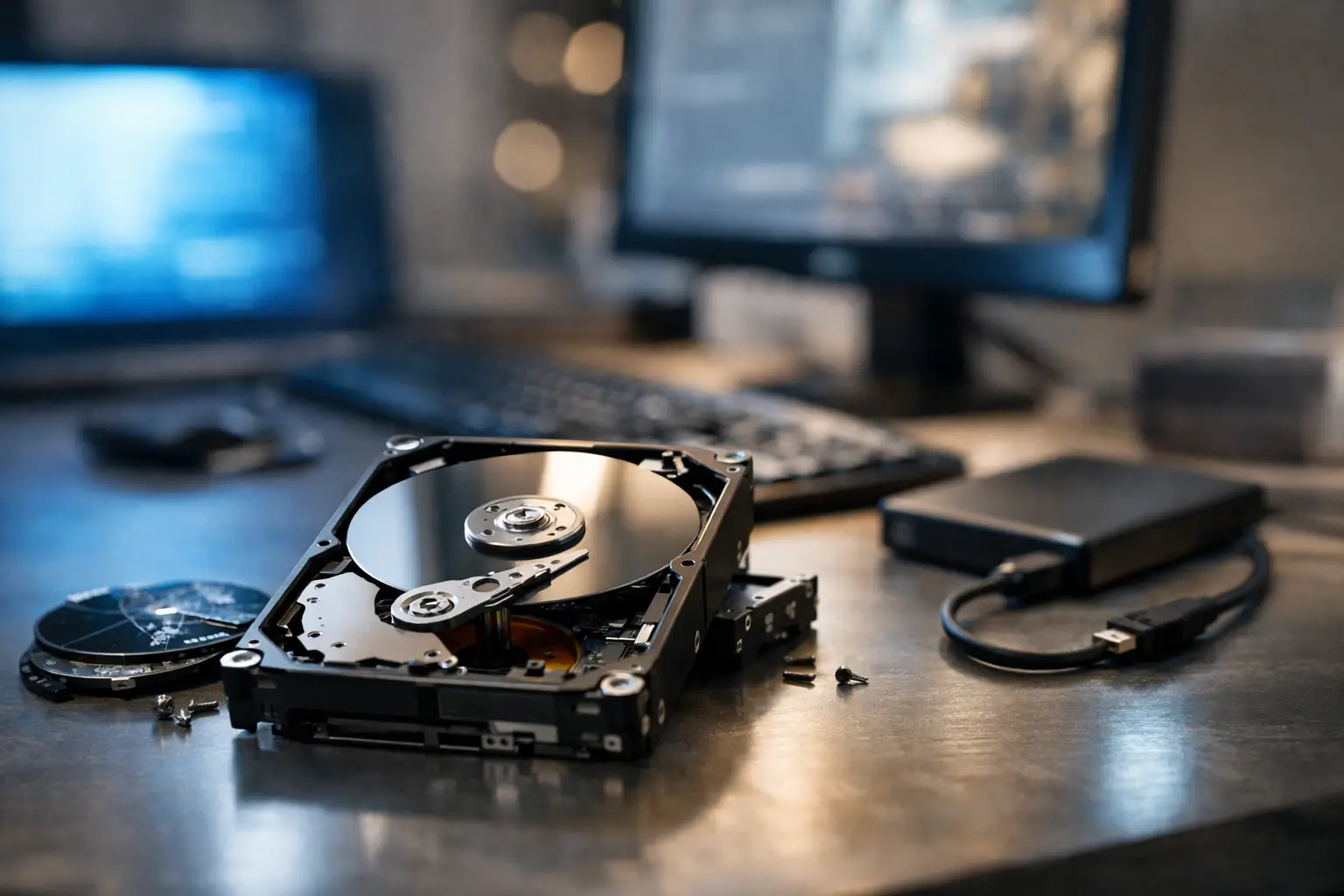
A hard drive rarely fails at a convenient time. It usually starts acting up when you need to open work files, finish a school project, access family photos, or boot the computer for a meeting. Knowing the top signs of a failing hard drive can give you a chance to protect your data before the drive stops responding altogether.
Hard drive trouble does not always mean the drive is beyond repair, and a slow computer is not automatically a drive problem. Malware, low storage space, failing memory, overheating, and software corruption can create similar symptoms. But when several warning signs appear at once, treat the situation seriously. Your first priority should be saving your important files, not trying random fixes.
Top Signs of a Failing Hard Drive
Clicking, grinding, or repeated beeping sounds
A healthy traditional hard disk drive, also called an HDD, may make a quiet spinning sound during normal use. Loud clicking, grinding, buzzing, or a repeating click-and-pause pattern is different. Those sounds can point to mechanical trouble inside the drive, including a damaged read/write head or difficulty locating data on the platters.
If the noise is new and continues whenever the computer starts or files are accessed, shut the system down after backing up anything still available. Do not keep restarting it to see whether the sound goes away. Every additional attempt can make recovery more difficult if the drive has a mechanical failure.
Solid-state drives, or SSDs, have no moving parts, so they do not make clicking noises. If an SSD is clicking, the sound is likely coming from a fan, power supply, or another component.
Files disappear, become corrupted, or will not open
A document that suddenly will not open, folders that appear empty, photos that display errors, or files that change names without explanation can indicate damaged sectors on a hard drive. Bad sectors are areas of the disk that can no longer reliably store or read data.
One corrupted file can happen for a simple reason, such as an interrupted save or a software crash. A pattern of corrupted files is more concerning. If you notice it across multiple folders or programs, copy the accessible files to an external drive or secure cloud storage right away. Start with the files that cannot be replaced: business records, current projects, tax documents, photos, and saved game data.
The computer freezes during basic tasks
A computer can slow down for many reasons, but a failing drive often causes a specific kind of delay. File Explorer may stop responding while opening a folder. Applications may freeze when saving or loading. The computer might hang at the desktop while the drive activity light stays busy.
This happens because the system is repeatedly trying to read data from a damaged area of the disk. You may eventually see an error message, but you may not. If freezing is paired with unusual noises, missing files, or boot errors, avoid treating it as a routine performance issue.
Frequent crashes and unexplained error messages
Blue screen errors on Windows, repeated application crashes, and messages stating that a file is missing or unreadable can be tied to a failing hard drive. The operating system depends on thousands of files stored on the drive. When it cannot read those files consistently, the computer can become unstable.
The same symptoms can also come from faulty RAM, corrupted system files, driver conflicts, or motherboard problems. That is why a proper diagnostic matters. Reinstalling the operating system may temporarily hide the issue, but it will not repair a physically failing HDD. Worse, a reinstall can overwrite data that could otherwise be recovered.
The computer takes much longer to start
An aging hard drive can make a computer take several minutes to boot, especially if it struggles to load Windows, macOS, user profiles, or startup programs. You may see a black screen, a spinning loading icon that does not progress, or a message saying no bootable device was found.
A single slow startup is not proof of drive failure. Repeated boot problems are different, particularly if the system eventually starts after several attempts. Do not assume the drive is fine simply because it finally loads. A drive that works intermittently may be close to failing completely.
The drive vanishes from the computer
If an internal or external hard drive appears one day and disappears the next, there may be a problem with the drive, its cable, its enclosure, or the computer port. External drives are especially vulnerable to worn USB cables, loose connections, and power issues, so testing a known-good cable or port is reasonable.
However, if the drive disconnects during file transfers, disappears from Disk Management or Finder, or is detected only occasionally, stop using it for normal storage. Reconnecting it over and over can put extra stress on a weakening drive. A technician can determine whether the issue is the drive itself, the enclosure, the USB port, or a board-level fault in the computer.
Storage health warnings appear
Many computers and diagnostic tools can read SMART data, which is the drive's internal health reporting system. A warning about imminent failure, reallocated sectors, pending sectors, or read errors deserves immediate attention. SMART is useful, but it is not perfect. Some drives fail with no warning, while others continue operating after a warning for days or months.
Use a health warning as a reason to back up and plan a replacement, not as permission to keep pushing the drive until it dies. If the data matters, make the backup before attempting repairs, updates, or operating system changes.
What to Do When You Suspect Drive Failure
The right next step depends on whether the drive is still accessible and how valuable the data is. If files open normally and the drive is quiet, copy the most important data first. Use a separate external drive or trusted cloud backup. Verify that the copied files actually open from the new location.
If the hard drive is clicking, grinding, constantly disconnecting, or preventing the computer from booting, do not run repeated scans, defragment the drive, or install recovery software directly onto it. These actions can add read and write activity at the worst possible time. Avoid internet myths such as freezing the drive or opening it up. Hard drives require a clean environment, and opening one outside proper equipment can permanently contaminate the platters.
For business computers, take the affected system out of regular use as soon as possible. Continuing to run accounting software, customer databases, or shared files from a failing disk risks losing more than one day's work. If the computer is part of a larger setup, make sure employees do not keep saving new data to it while you arrange service.
Is It the Hard Drive or Something Else?
A good diagnosis separates drive failure from problems that look similar. A bad SATA cable can cause drive detection issues. A failing power supply can make drives disconnect or prevent startup. Overheating can cause freezes, while malware or a nearly full drive can severely affect performance.
This is also where older computers need a practical cost discussion. If the HDD is failing but the rest of the system is in good condition, replacing it with an SSD can improve both reliability and speed. The trade-off is that data migration may not be possible if the original drive is severely damaged. If the computer also has motherboard, power, or memory issues, a full evaluation helps determine whether repair makes financial sense.
Get the Data Question Answered Before It Is Too Late
When a drive contains data you cannot replace, the goal is not simply getting the computer to turn on. The goal is preserving the best possible chance of recovering the files. EPElectrocenter performs in-store diagnostics for computers and storage-related issues, with a free initial evaluation and clear guidance on whether the problem appears recoverable.
Walk in with the computer or external drive, and bring any power adapter or cable involved if it is an external unit. Explain what changed, when the symptoms began, and whether the drive has been dropped, exposed to liquid, or making unusual sounds. Those details help narrow down the fault faster.
A failing hard drive may still give you a short window to act. Use it to protect the files that matter, then have the hardware diagnosed before a manageable problem becomes a permanent data loss.