
Gaming Console Maintenance That Prevents Repairs
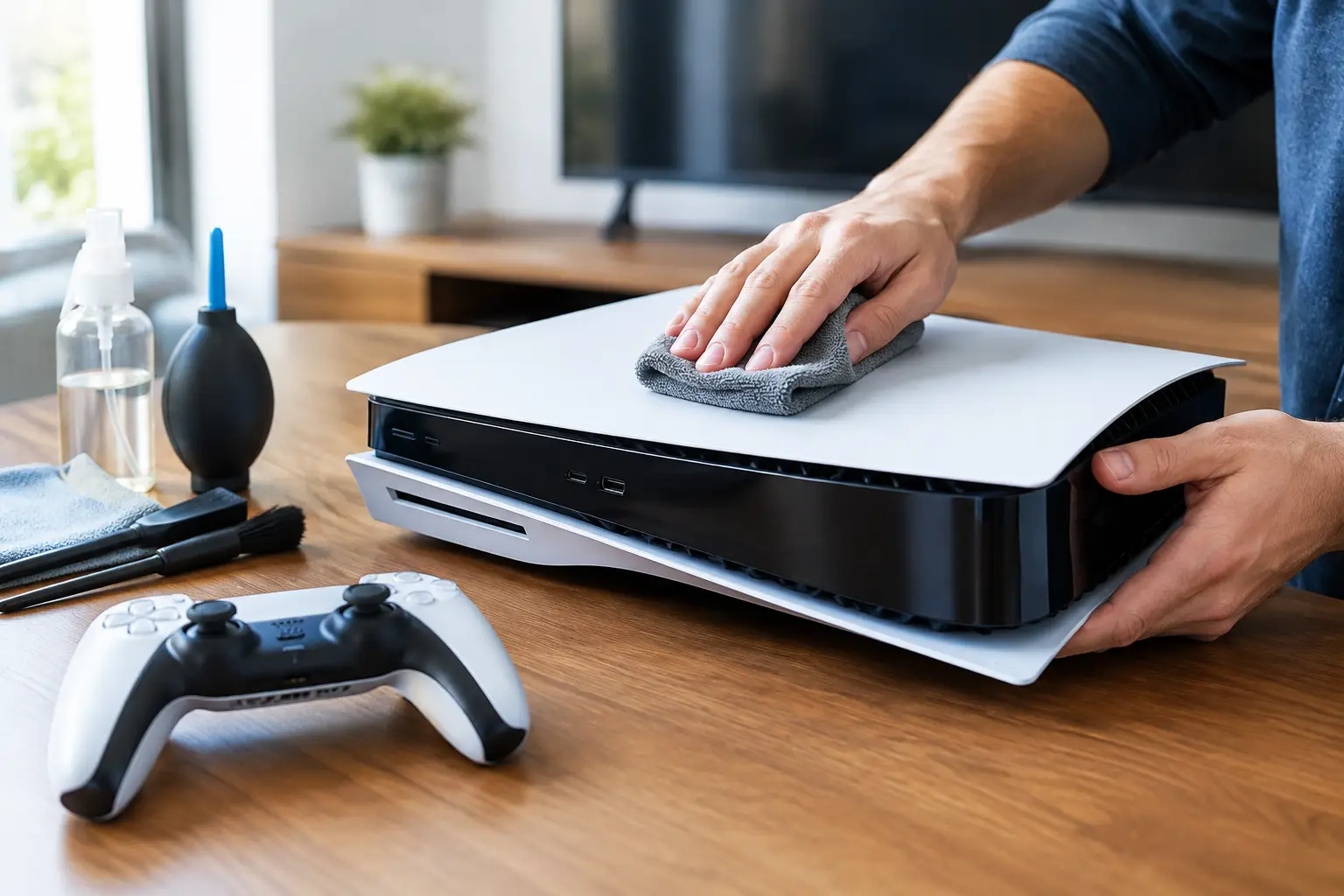
A console that suddenly shuts down during a match usually did not fail without warning. Heat, dust, loose ports, worn cables, and power problems build up over time. Regular gaming console maintenance helps keep those small issues from turning into a no-power failure, HDMI repair, or expensive board-level problem.
For most households, maintenance does not mean taking apart a PS5, Xbox, Nintendo Switch, or older system every month. It means setting up the console correctly, handling its ports carefully, cleaning the outside safely, and knowing when a problem needs professional attention.
Gaming Console Maintenance Starts With Heat Control
Modern gaming consoles create a lot of heat, especially during long sessions, large game downloads, or demanding titles. Their fans and heatsinks are designed to manage that heat, but they need clear airflow to do their job. A console pushed into a tight TV cabinet, set on carpet, or surrounded by other hot electronics is working harder than it should.
Leave several inches of open space around the vents. Do not stack a console on a cable box, receiver, external hard drive, or another console. Avoid placing it directly against a wall or inside a closed entertainment center unless that cabinet has real ventilation. If the air around the system feels hot, the console is pulling that hot air back through its cooling system.
The upright-versus-horizontal question depends on the model and the manufacturer’s guidance. Either position can be fine when the console is stable and its vents are unobstructed. What matters more is preventing falls, keeping the system level, and using the correct stand or base if the manufacturer requires one.
Warning signs of heat trouble include loud fan noise, unexpected shutdowns, overheating messages, stuttering performance, or a console that feels unusually hot around its exhaust vents. Do not keep forcing it through long gaming sessions when those signs appear. Repeated overheating can stress thermal components and, in severe cases, contribute to motherboard damage.
Clean Dust Without Damaging the Console
Dust is one of the most common reasons a console becomes noisy or overheats. It collects on vent openings first, then works its way toward the fan and heatsink. Homes with pets, carpet, smokers, construction dust, or several people using the same living space often need more frequent external cleaning.
Power the console off fully and unplug it before cleaning. Use a soft brush or microfiber cloth to remove dust from the outer vents and surrounding shelf. A low-power vacuum held near the vents can collect loose dust without blowing it deeper into the system.
Be careful with compressed air. Spraying air directly into a vent can push debris farther inside, make a fan spin beyond its normal speed, and spread dust across sensitive components. If you use canned air at all, use short bursts from a safe distance and do not tilt the can. Never spray liquid cleaners into vent openings.
A heavily clogged console may need internal cleaning, but that is not always a good do-it-yourself project. Opening a system can damage clips, tear thermal pads, strip screws, or create warranty concerns. It also will not solve every overheating issue. A failing fan, dried thermal material, damaged sensor, or power-related fault requires diagnosis rather than more cleaning.
Protect HDMI, USB, and Charging Ports
HDMI ports are among the most frequently damaged console connections. The port itself is secured to the motherboard, and repeated side pressure from a bent cable or a console shoved against a wall can crack its internal pins or weaken the solder joints. Symptoms can include no signal, flickering video, distorted colors, or a display that works only when the cable is held at a certain angle.
Use an HDMI cable with enough slack to reach the TV without pulling. When moving the console, disconnect the cable instead of dragging the system with the cable still attached. Avoid forcing a connector that does not slide in easily. The same rule applies to USB ports, headset jacks, Ethernet connections, and Nintendo Switch USB-C charging ports.
For handheld systems, use a quality charger with the correct power specifications. Cheap or damaged charging accessories can cause intermittent charging, excess heat, or charging port wear. If a cable only works when bent, replace the cable before assuming the console is at fault.
Do not try to dig lint or debris out of a port with a metal pin, paper clip, or knife. You can bend contact pins or create a short. A port that is loose, visibly bent, or no longer detecting cables may need professional repair, especially when the connection is mounted directly to the board.
Use Power Protection That Matches the Setup
Power surges and unstable outlets can damage consoles, power supplies, TVs, routers, and external drives. A quality surge protector is a practical investment for a gaming setup, particularly during storms or in older buildings with inconsistent electrical service. It is not a guarantee against every electrical issue, but it is better protection than plugging valuable electronics directly into the wall.
Avoid overloading one power strip with consoles, TVs, speakers, chargers, and high-draw appliances. If a system powers off randomly, will not turn on, makes clicking sounds, or has a burning smell, stop using it. Do not continue swapping cords and repeatedly trying to power it on if you suspect an electrical fault.
When the console will not be used for an extended period, fully shut it down and unplug it if there is a risk of storms or power instability. Rest mode can be useful for updates and remote downloads, but it still leaves the system connected to power. The right choice depends on how often you use it and the reliability of your power setup.
Keep Software, Storage, and Games Healthy
Maintenance is not only physical. System updates often include stability fixes, security improvements, and compatibility updates for accessories and games. Let updates install when you have time, rather than interrupting them repeatedly or turning off the console during a firmware installation.
Storage also affects day-to-day performance. Keep some free internal storage available so the system can download updates, manage temporary files, and install games properly. If the console starts showing corrupted data messages, slow menus, installation errors, or repeated crashes in multiple games, do not immediately assume the storage drive has failed. A software issue, bad game data, overheating, or a power interruption can cause similar symptoms.
Back up saved data whenever your platform and subscription allow it. Cloud saves are convenient, but they are not a substitute for checking that sync is actually working. If you are moving data, upgrading storage, or dealing with a console that has become unstable, protecting save files before troubleshooting is a smart step.
Maintenance Habits That Prevent Accidental Damage
A few everyday habits make a real difference:
- Keep drinks away from the console, controller charging area, and TV stand. Liquid can travel quickly through vent openings and ports.
- Do not move a console while a disc is spinning or while a game is installing.
- Use the proper shutdown process instead of cutting power at the strip during normal use.
- Store controllers in a dry place and charge them with undamaged cables.
- Keep game discs in cases and clean fingerprints with a soft cloth, wiping from the center outward.
Controllers deserve attention too. Sticky buttons, joystick drift, weak batteries, broken USB-C ports, and damaged triggers can get worse when ignored. Cleaning the exterior and avoiding food residue around buttons helps, but internal joystick or charging issues often require repair rather than surface cleaning.
When a Console Needs a Technician
Some problems look simple but are not. A no-video issue might be an HDMI cable, a damaged HDMI port, a display setting problem, or a board-level fault. A console that will not charge may have a bad charger, a worn port, battery trouble, or a failed charging circuit. Accurate diagnosis prevents paying for the wrong repair.
Get professional help when the console has liquid exposure, overheating that continues after safe external cleaning, a loose or damaged port, no power, repeated shutdowns, corrupted storage, or visible physical damage. Do not keep powering on a liquid-damaged console to “check if it still works.” Corrosion can progress while power is present.
For El Paso gamers, EPElectrocenter provides free initial evaluations and performs console diagnostics and repairs in-store, including advanced board-level work when a basic part replacement is not enough. Walk-ins are welcome, and a clear diagnosis can save a console that might otherwise be replaced too soon.
Treat your console like the high-performance electronics system it is: give it room to breathe, keep its connections protected, and address warning signs early. A few minutes of regular care can keep game night from becoming a repair emergency.