
Why Won’t My Laptop Charge? 8 Checks to Try
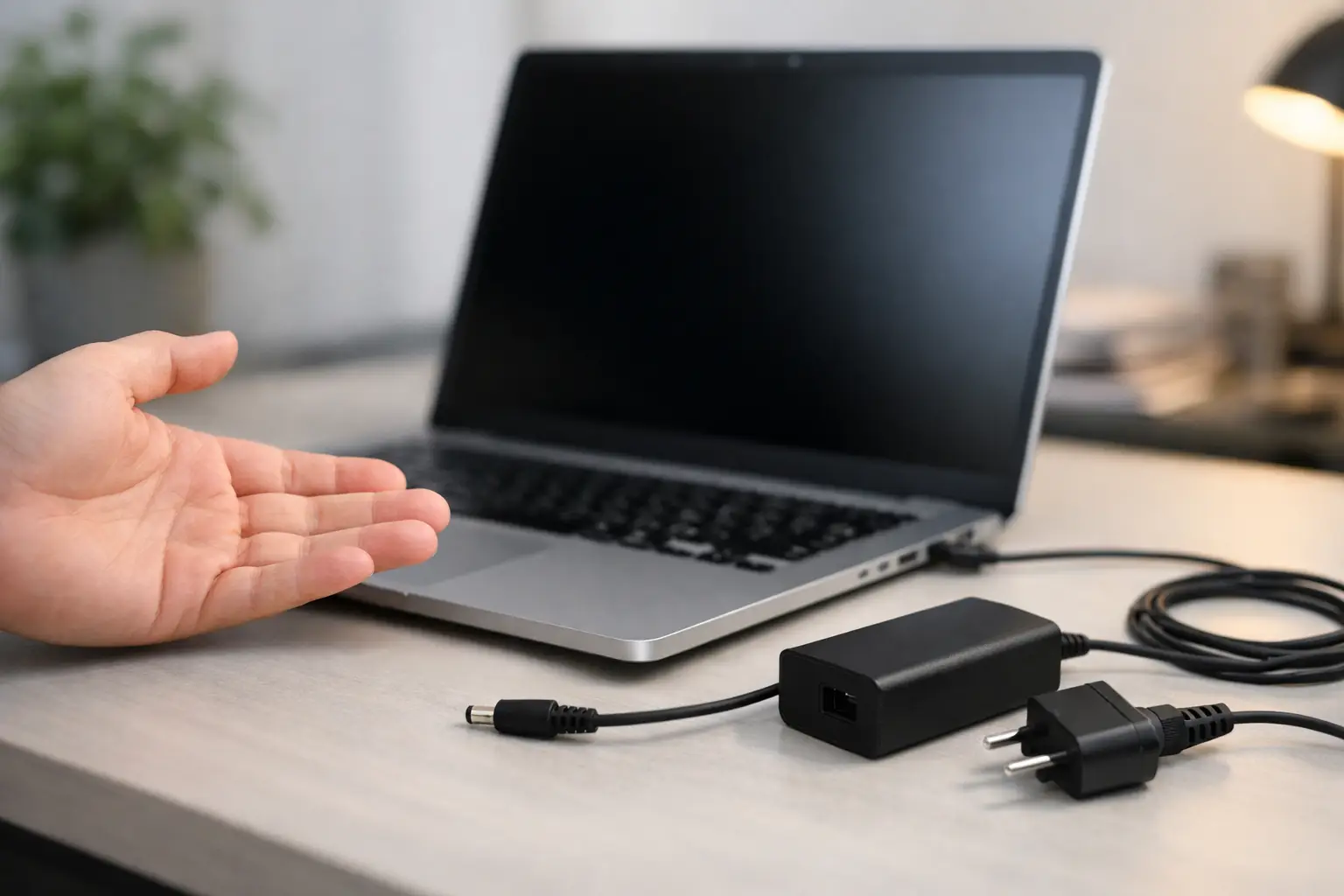
A laptop that suddenly stops charging can turn a normal workday into a problem fast. If you are asking, “why won’t my laptop charge?” the cause may be as simple as a loose outlet connection, or as technical as a failed charging circuit on the motherboard. The key is to rule out the safe, obvious issues first without risking further damage to your battery, data, or device.
Why Won’t My Laptop Charge? Start With the Basics
Before assuming the battery is bad, check whether the laptop is actually receiving power. Plug the charger directly into a known-working wall outlet. Avoid power strips, extension cords, and surge protectors for this first test, since those can fail or have a switched-off outlet.
Look for any charging indicator on the laptop. Many models show a small LED near the charging port, while others display a battery symbol in the operating system. If the indicator comes on but the battery percentage does not increase, the laptop may be recognizing the charger but not accepting enough power to charge.
Next, inspect the charger and cable. A bent connector, exposed wiring, frayed cable, loose charging tip, burning smell, or unusually hot power brick is a clear reason to stop using it. Chargers can fail internally even when the outside looks fine. If you have access to another compatible charger with the correct voltage and wattage, testing with it can quickly narrow down the problem.
Do not use a random charger just because the plug fits. USB-C laptops are especially sensitive to charger wattage and Power Delivery compatibility. A low-watt charger may power the laptop slowly, show “plugged in, not charging,” or fail to keep up while the computer is in use.
Check the Charging Port for Damage
A charging port takes a lot of daily wear. Repeated plugging, pulling on the cable, drops, and pressure from using a laptop while it is plugged in can loosen the port or damage its internal connections.
With the laptop powered off, gently insert the charger. It should fit firmly without excessive movement. If you have to hold the cable at an angle, move it around to start charging, or notice that it disconnects when the laptop shifts, the charging port may be worn, loose, or separated from the board.
Also look inside the port with a flashlight. Dust, lint, pet hair, or debris can prevent a solid connection. Do not dig into the port with a metal object, paper clip, or knife. That can bend internal pins or create a short. A soft, nonmetal brush or a brief burst of compressed air can be appropriate for light debris, but a visibly bent USB-C pin or damaged center pin needs professional repair.
On some laptops, the DC jack is a separate replaceable part. On others, especially thin laptops and many USB-C models, the port is soldered directly to the motherboard. That difference matters because a port repair may range from a straightforward component replacement to board-level micro-soldering work.
Rule Out a Battery or Power Management Glitch
Sometimes the battery and charging system need a full reset. Shut down the laptop completely, unplug the charger, and disconnect any USB devices, docking stations, external monitors, or accessories. If your model has a removable battery, remove it if you can do so safely.
Hold the power button for about 15 to 30 seconds to drain residual power. Then reconnect the charger and try starting the laptop again. This can reset a stuck power controller on some Windows laptops.
If the laptop runs only while plugged in but turns off immediately when the charger is removed, the battery is likely no longer holding a usable charge. Batteries wear down with age, heat exposure, and charge cycles. Swelling is a more serious warning sign. If the bottom case is separating, the trackpad is lifting, or the laptop no longer sits flat, stop charging it and have it inspected. A swollen lithium battery is not something to squeeze back into place or keep using.
MacBooks and newer Windows laptops often have internal batteries that should be replaced carefully. The battery may be the problem, but it is worth diagnosing the charging system first. Replacing a battery will not solve a damaged port, failed charger, or motherboard charging fault.
Check Software Messages and Battery Health
When the laptop turns on, pay attention to what it says about charging. A message such as “plugged in, not charging,” “charger not recognized,” or “low power adapter” provides useful diagnostic information.
Windows may show battery health details through the manufacturer’s hardware utility or a battery report. Some systems also limit charging at 60% or 80% to extend battery lifespan. This is common on business laptops and gaming laptops. If the device consistently stops at the same percentage but otherwise works normally, check the manufacturer’s battery conservation or smart charging setting before assuming there is a failure.
On a MacBook, battery condition warnings, service recommendations, or a charger icon that appears but does not charge can point to battery wear, charger communication issues, or internal power faults. A system update can occasionally correct a software issue, but software should not be the first suspect if the charging cable is loose, the port is damaged, or the laptop has had liquid exposure.
Consider Heat, Heavy Use, and Charger Wattage
A laptop can appear not to charge when it is actually using power as fast as the charger can supply it. This happens often with gaming laptops, video editing systems, and laptops running multiple external displays. If the battery percentage drops while you play a game or run demanding software, test again with the laptop shut down or idle.
A weak, damaged, or underpowered charger may keep the laptop running but fail to recharge the battery. The same issue can occur when a high-performance laptop is connected through a dock that does not provide enough wattage.
Heat can also pause charging. If the laptop is very hot, turn it off, unplug it, and let it cool on a hard, flat surface. Do not place it in a freezer or blow cold air directly into the ports. Once it has cooled, try charging again. If overheating is frequent, the cooling system may need cleaning, fan service, or further diagnosis.
When Liquid Damage Is Part of the Story
Even a small spill can cause charging problems days or weeks later. Coffee, soda, water, and humidity can corrode components around the charging port, battery connector, and motherboard power rails. The laptop may charge intermittently at first, then stop charging completely.
If liquid was involved, do not keep reconnecting the charger to “see if it works.” Power can worsen corrosion damage or create a short. Turn the laptop off, disconnect the charger, and have the device inspected as soon as possible. Rice does not remove corrosion from the inside of a laptop.
Professional liquid damage service involves opening the device, checking for corrosion, cleaning affected areas, and testing the charging circuit. Whether repair makes sense depends on the extent of damage, the laptop’s age, its value, and whether important files are stored on it.
Problems That Usually Need Professional Repair
If you have tested a known-good compatible charger, checked the outlet, inspected the port, and performed a safe power reset, the issue may be inside the laptop. Common internal faults include a failed battery, broken DC jack, damaged USB-C port, charging IC failure, blown fuse, corroded component, or a short on a motherboard power rail.
These are not all the same repair. A battery replacement is different from a charging port replacement, and neither is the same as repairing a motherboard-level charging circuit. Accurate diagnostics prevent paying for parts that will not fix the actual problem.
At EPElectrocenter, laptop charging problems are evaluated in-store, including advanced board-level faults that many standard shops do not repair. Walk-ins are welcome, and a free initial evaluation can help determine whether the issue is the charger, battery, port, or motherboard before you commit to a repair.
Protect Your Files While You Decide What to Do
A charging failure does not automatically mean your data is gone. If the laptop still powers on with the charger connected, back up important files immediately. Save work documents, photos, accounting files, school projects, and browser passwords or recovery information before the problem gets worse.
If the laptop will not turn on at all, avoid repeated force-start attempts with questionable chargers. A proper diagnosis can identify whether the system needs power repair, battery service, or data recovery. The fastest path is usually the safest one: test the simple causes, stop when you see physical damage or heat, and get the right repair before a small charging issue becomes a larger one.